
PVTLeaf Version 2 is a simple real-time translation tool designed for beginners. Using the control panel and video below, you can easily translate audio from your computer into your chosen language. Please follow the steps below to set it up and start translating.
Additionally, to enhance privacy, it supports connections to on-premises environments. (You will need to set up your own server separately.)
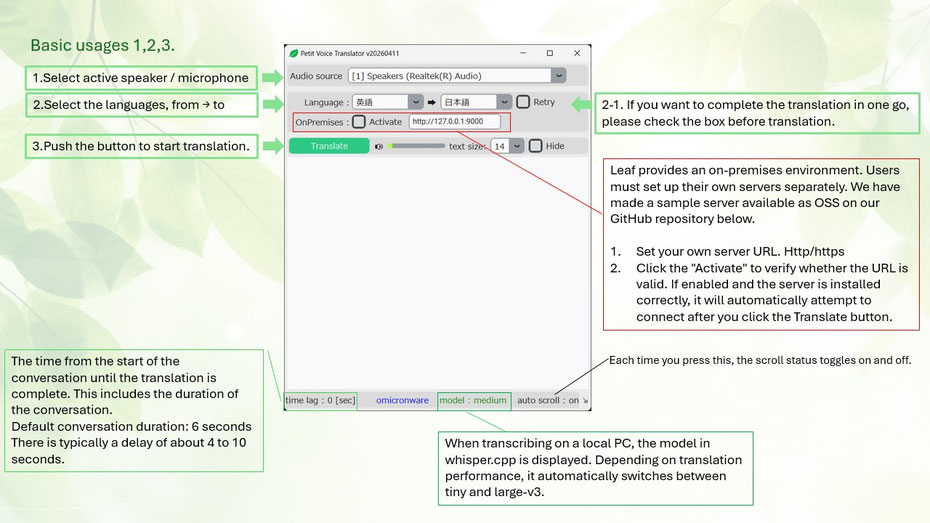

The following explanation applies to both Version 1 and Version 2.
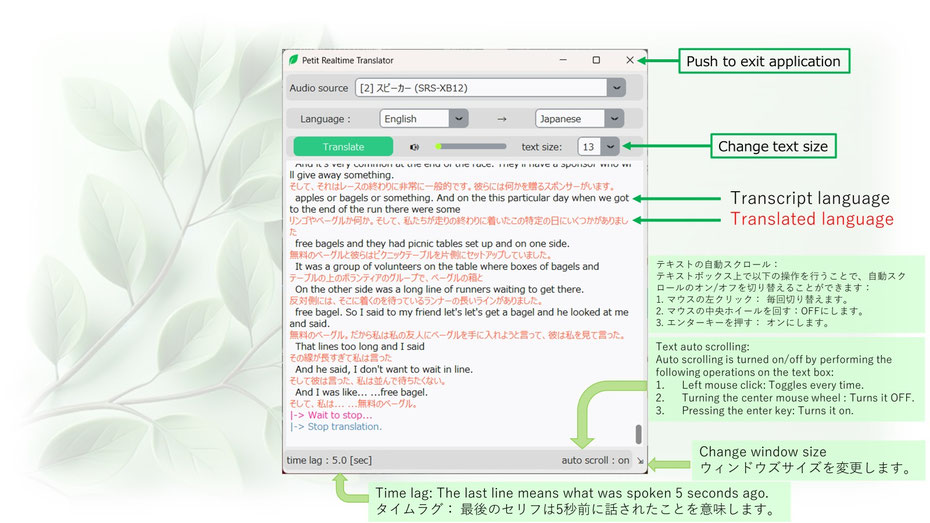
A series of operating procedures are shown in the video below.

For Advanced users
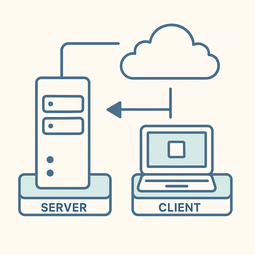
PVTLeaf allows users to implement their own client-server model with any translation engine for experimental purposes. Scripts for experimental servers are available.
GitHub:
Environment using Google Translate for text translation
Faster-Whisper GoogleTrans Server (Light weight & high ~ middle precision)
The following configurations can operate completely under local environment.
For those who value confidentiality.
Faster-Whisper_Llama3_Server (Very heavy load, Not real time, On-Premises)
Faster-Whisper_M2M100_Sever (Light weight & middle precision Recommended, On-Premises)
Faster-Whisper_M2M100_Full_CUDA (Light weight & middle precision Recommended, On-Premises)
Note: If you do not want to change the version of CUDA or if you have trouble installing it properly, we have packaged the necessary DLLs in the URL below. Extract it to the same location as the server code above.
If you want to handle a higher load, you can consider using Gunicorn+gevent worker, Kubernetes, etc. to scale the configuration. The client configuration and a brief description are provided in the file below. (For older version 1, client settings and brief instructions are provided in the file below. Starting with Version 2, the basic functions listed below can be controlled via the GUI.)
C:\Users\<UserName>\AppData\Local\omicronware\PVTleaf\user_env\environment.json
Simple usage of the client (as an experimental client-server model) :
Before starting the client PetitVoiceTranslator_Leaf, edit the json file.
"active": "True"
You can connect to a remote server: (e.g. sample.server.com) via HTTP. If you use HTTPS, please prepare a separate certificate and private key on the server side and put them in the same directory as the script. Also, send the server certificate to the client side and edit the json file. The following is an example including the location. Server certificate: (e.g. server.crt)
"server_url": "https://sample.server.com:9443/transcribe"
"ssl_verify": "C:/Users/<UserName>/AppData/Local/omicronware/PVTleaf/user_env/server.crt",
Also, although not recommended, if the client does not need the server's certificate,
"ssl_verify": "False",
That's it, thanks.